

How to View Reports in WP Project Manager
With Project Manager, you can generate reports of your projects, tasks, etc. focusing on various criteria.
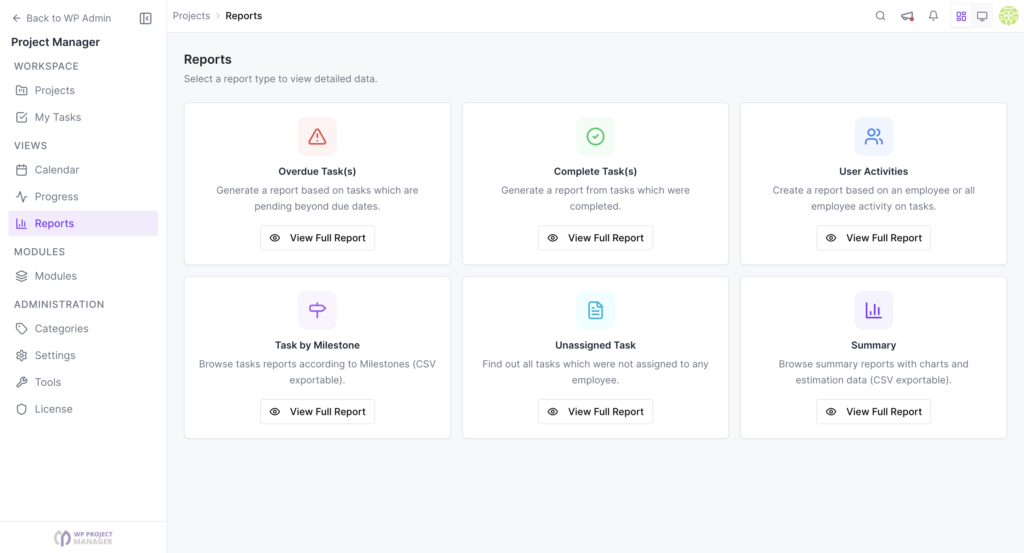
To view reports navigate to wp-admin → Project Manager → Reports.
We have added several predefined report cases depending on user feedback. The reports are very much self-explanatory.
Overdue Tasks
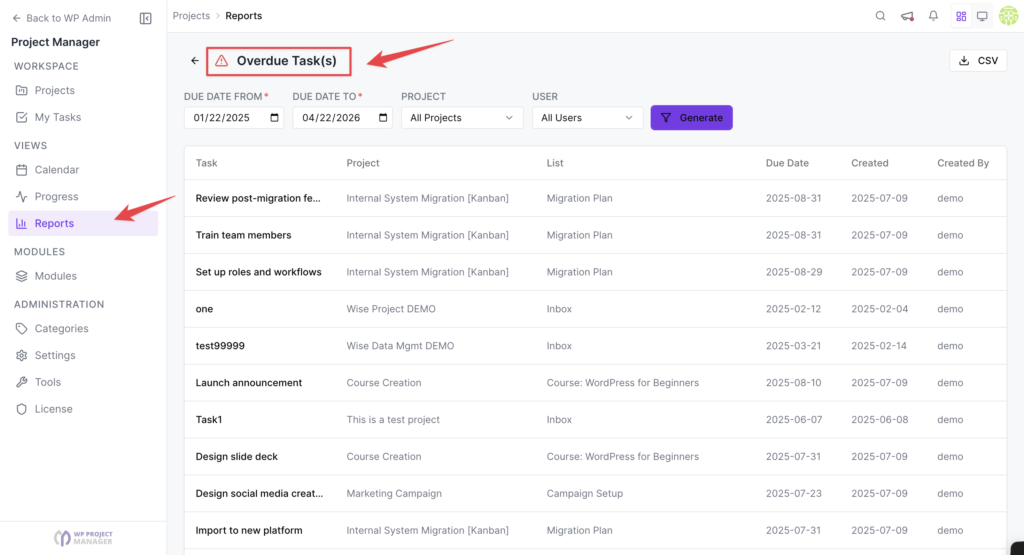
Section titled “Overdue Tasks”List tasks from the project that have passed the due date but are not completed yet. Now, you can determine which tasks you need to get off your waiting list first.
Complete Tasks
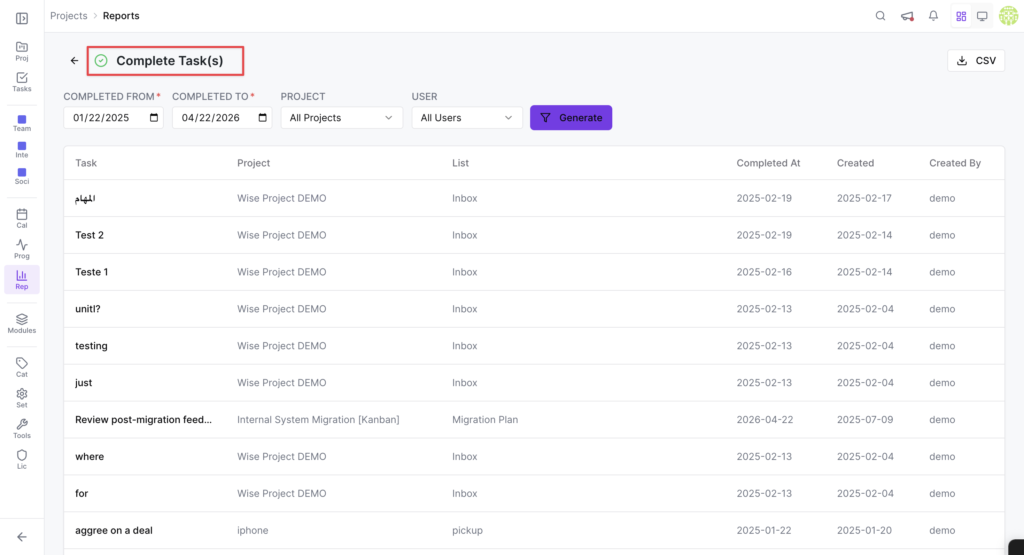
Section titled “Complete Tasks”Tasks that were completed from all to-do lists. Tasks which you can relax about.
User Activities
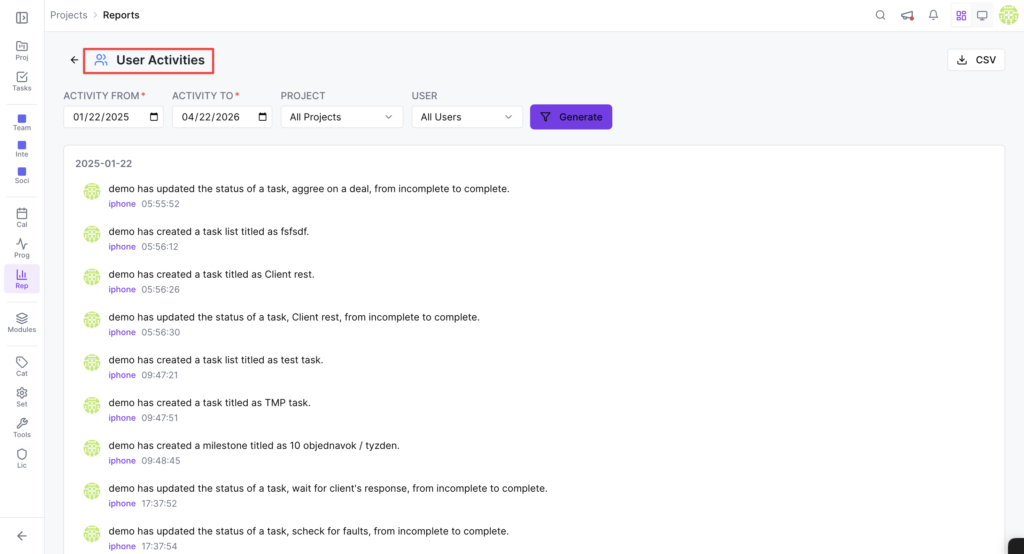
Section titled “User Activities”A complete review of all the tasks created or deleted by all co-workers. It is also possible to create reports for specific user activities. All you have to do is select the user name and time frame.
Project Task
Section titled “Project Task”A complete report showing all your tasks from projects. You can also generate reports for complete and incomplete tasks. When you select this report a popup will be displayed and you have to choose what kind of report you want to generate and press the Run Report button.
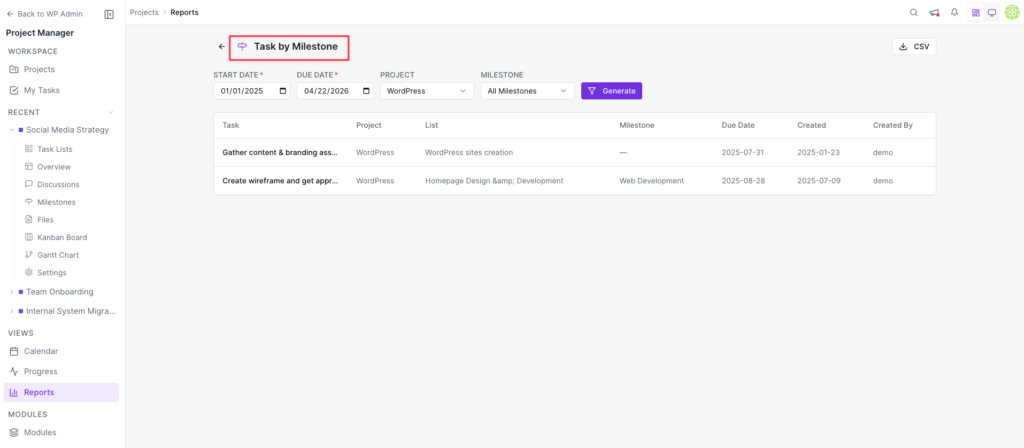
Task by Milestones
Section titled “Task by Milestones”Displays all the tasks according to specific milestones. You have to select a project and assign milestones to generate this report. You can also export this report to CSV file format.
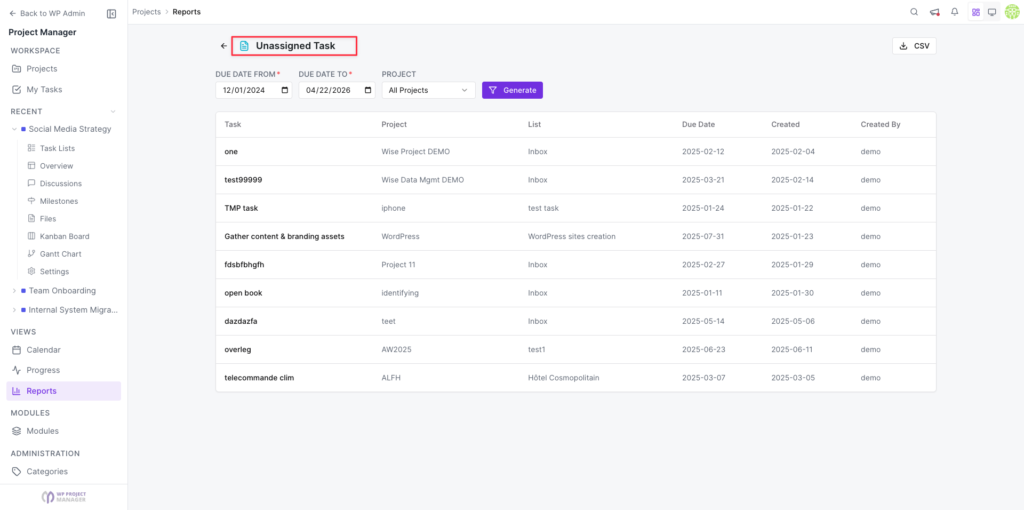
Unassigned Task
Section titled “Unassigned Task”This report lists all the tasks which were not assigned to any of the users.
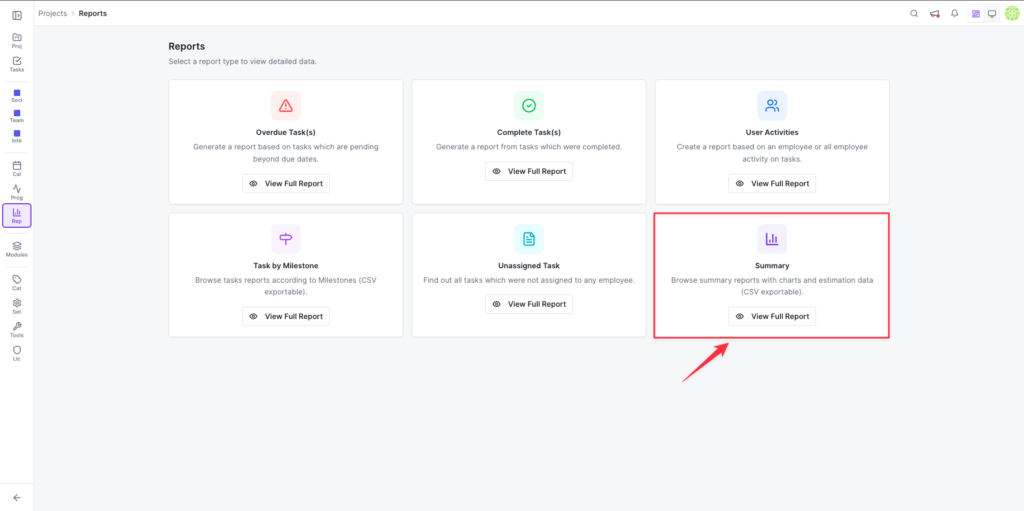
Summary
Section titled “Summary”This report will help you give a snapshot of your projects' every aspect. The most amazing thing is that you can customize the attributes of your project report to get the report according to your preferences.
To get the report, hit the ‘View Full Report' button:
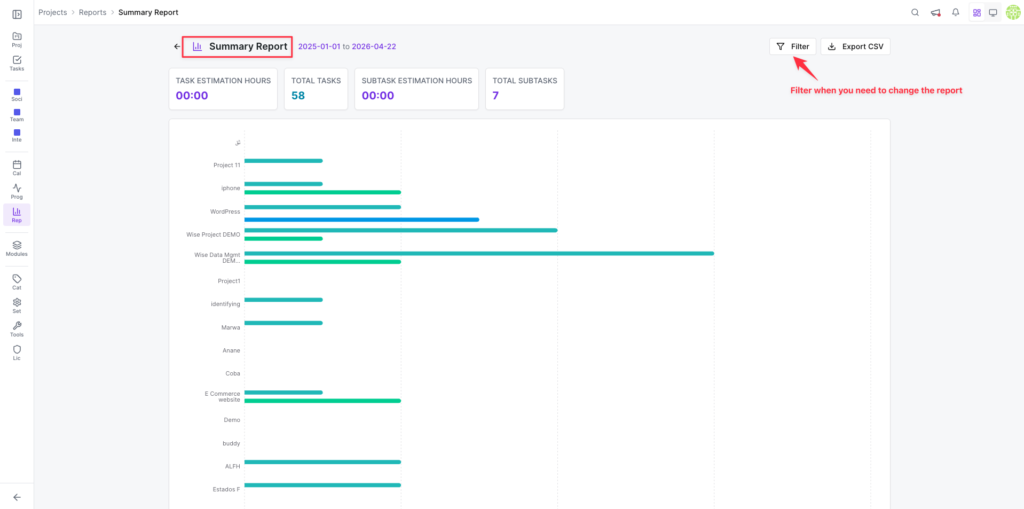
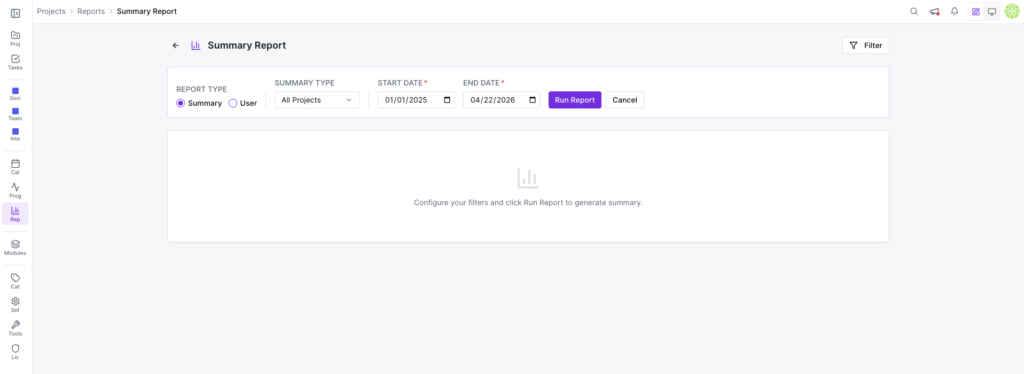
Next, you will get a pop-up to set the filter option. You will get the following options:
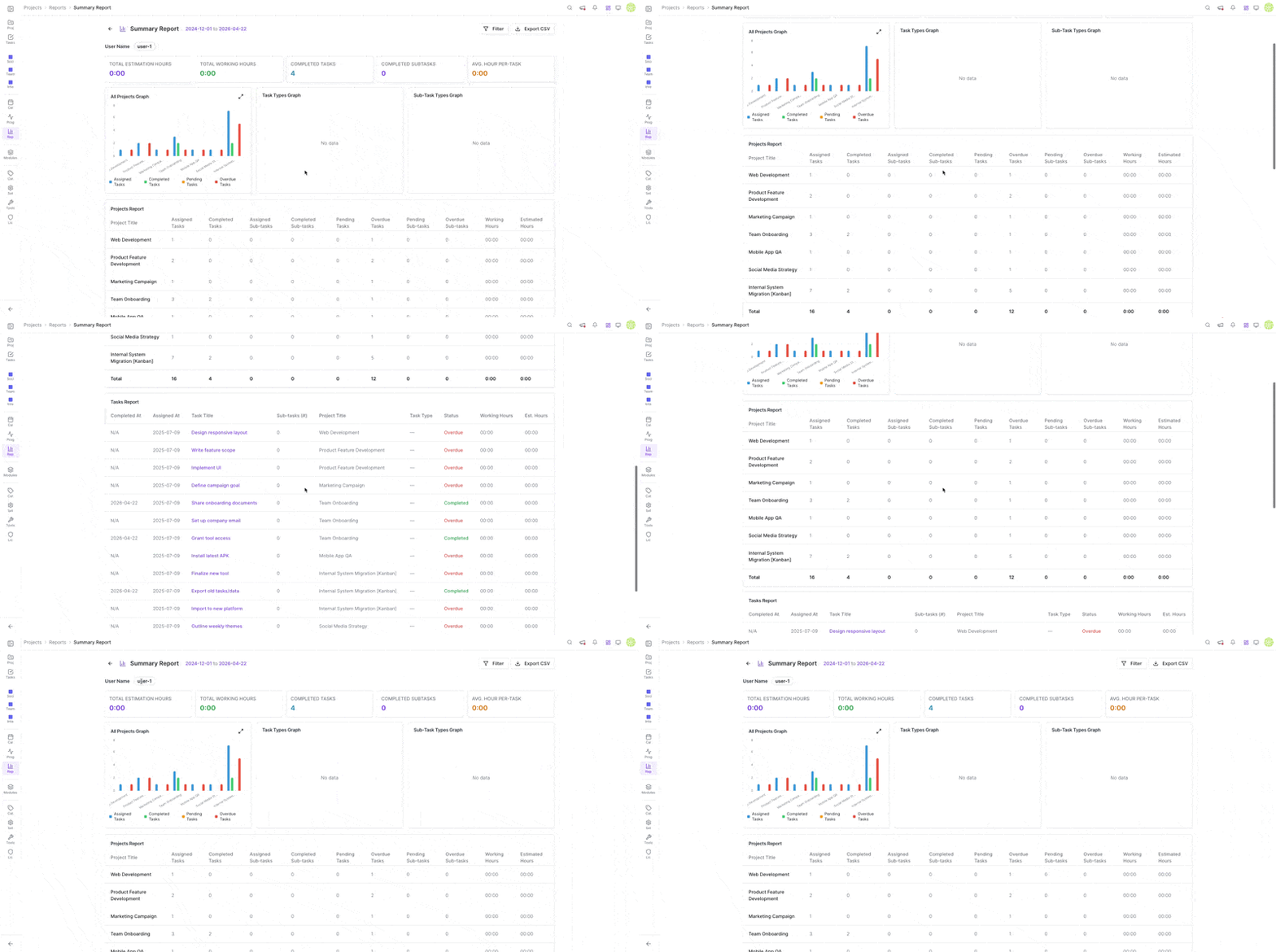
-
Summary type: To enable this ‘Summary Type' option, you must select the ‘Summary' radio button from the ‘Choose report type' option.
By default, it is set to the ‘All Project' option. But you can click on the dropdown menu and select either ‘All Project' or ‘Task List' or ‘All User'. -
Start Date and End Date: Set a date range to get report during that period.

What will the estimated time report look like?
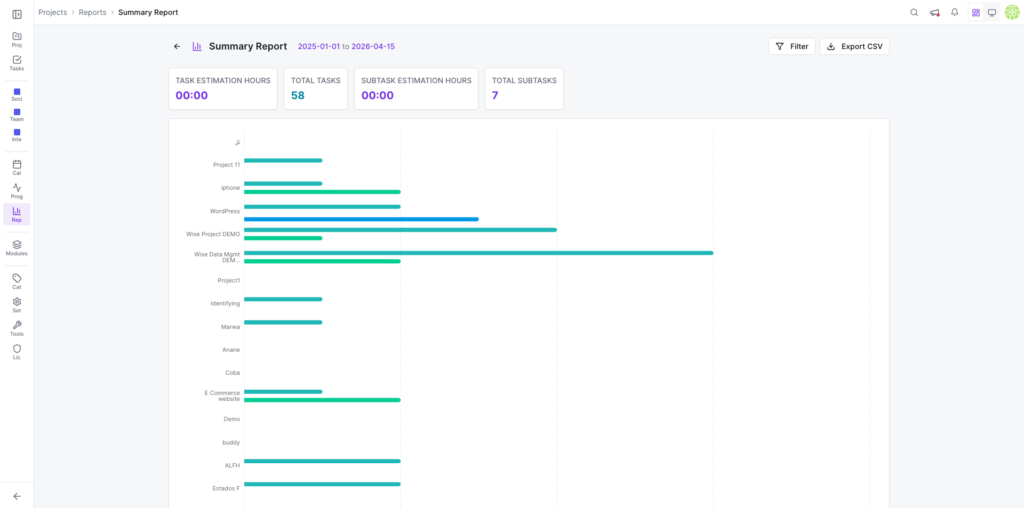
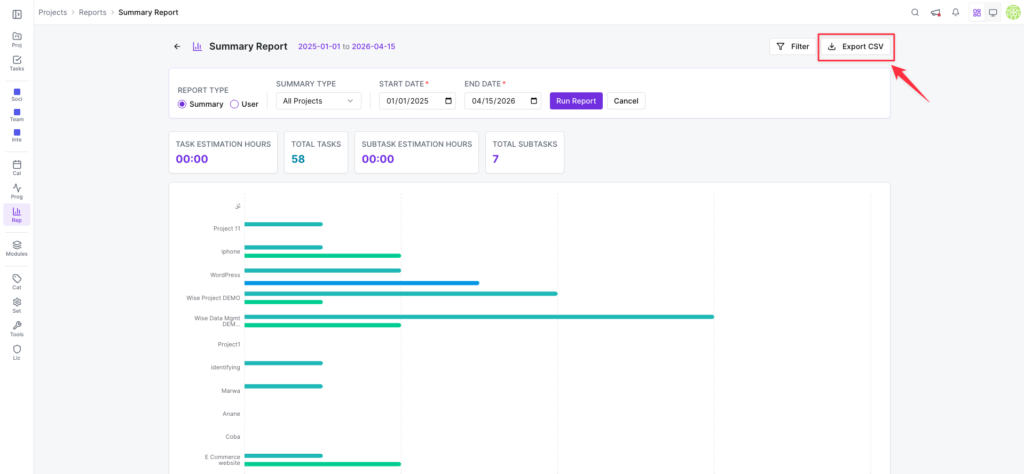
Section titled “What will the estimated time report look like?”Here is an example of ‘All Projects' estimated time report based on the ‘Summary' type:
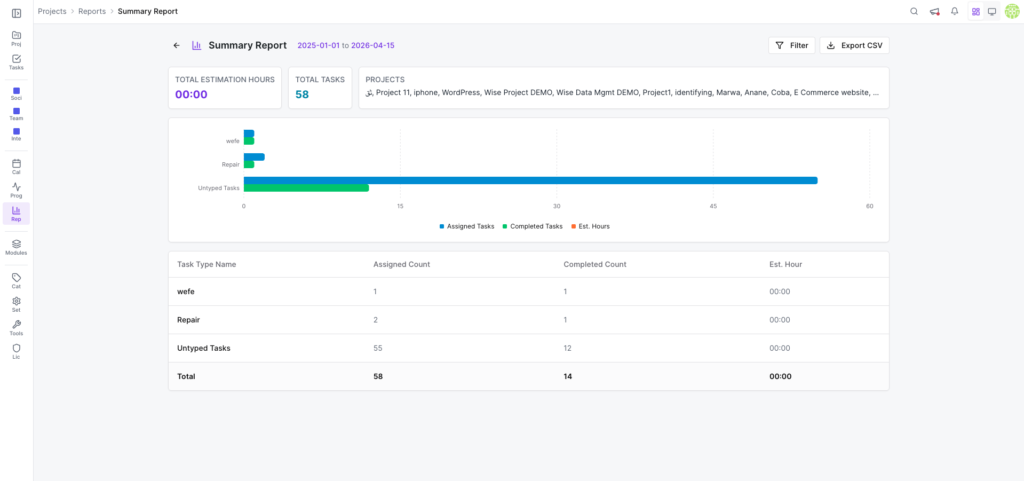
Here is an example of a ‘Task List' report based on the ‘Summary' type:
How to Export to CSV
Section titled “How to Export to CSV”After getting reports, you can export your reports as an Excel file for backup. Click ‘Export CSV' button and a file will be downloaded.
If you have any feature requests or are having difficulty understanding this doc, please open a support ticket.