

How to Activate Github & Bitbucket
With this integration, you can easily add new tasks to your WP Project Manager Pro, when someone posts an issue on Github or Bitbucket. This is a handy feature for developers who are managing their projects with WP Project Manager Pro.
Activating Github/ Bitbucket Integration
Section titled “Activating Github/ Bitbucket Integration”To use this integration, open any of your projects and navigate to –
Your Project → Settings → Integrations
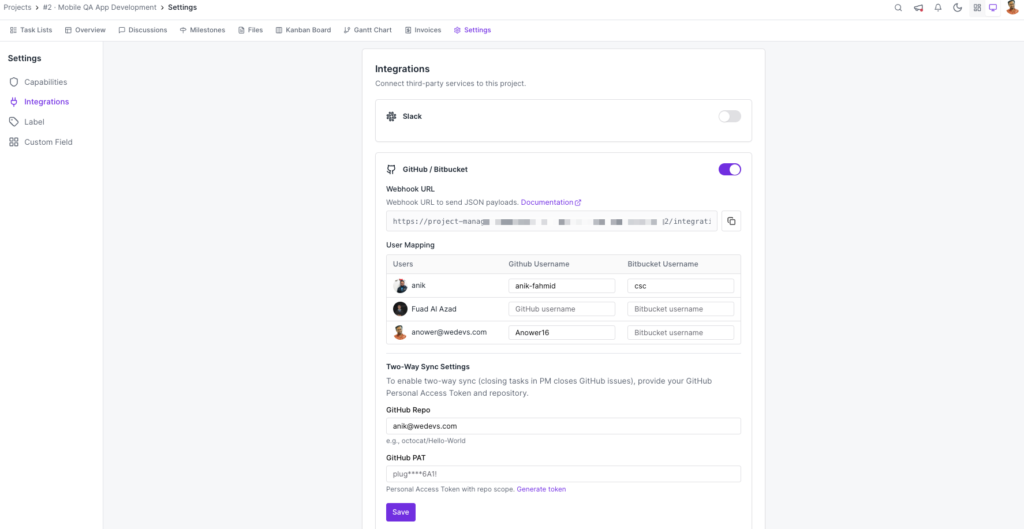
You will see Github & Bitbucket integration options. Enable this feature with the toggle button.
Setting Up the Webhook
Section titled “Setting Up the Webhook”Now, you will get a Webhook URL that you will have put in your Github/ Bitbucket repository settings. Click on the Webhook URL to copy it.
Creating Github Webhooks
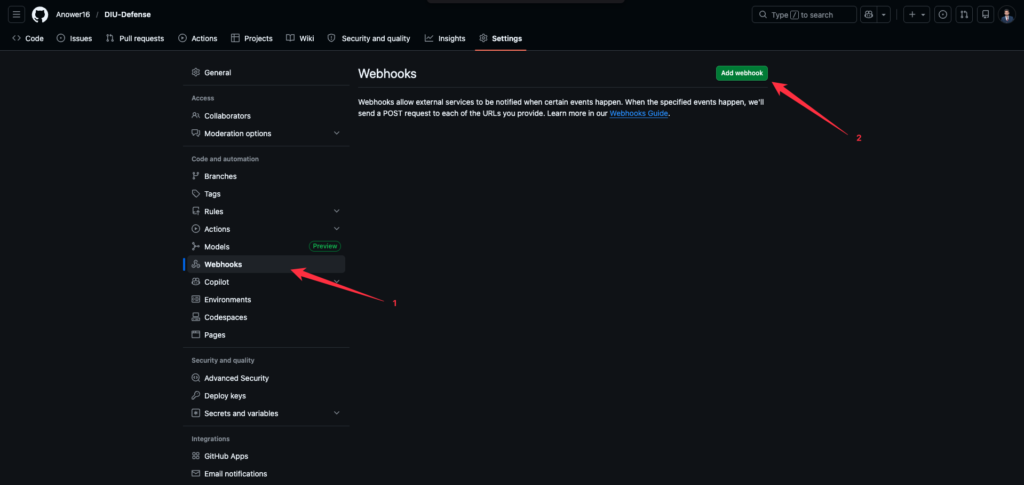
Section titled “Creating Github Webhooks”Head over to your Github repository. Click on the Settings tab and go Webhooks. Now, click on the Add Webhook button.
You will have to paste the Webhook URL that you have copied from your Project Settings in the Payload URL field. Next, you have to select the Content type as ‘application/json'. Now, select Send me everything in the events radio field. Finally, hit the Add webhook button.
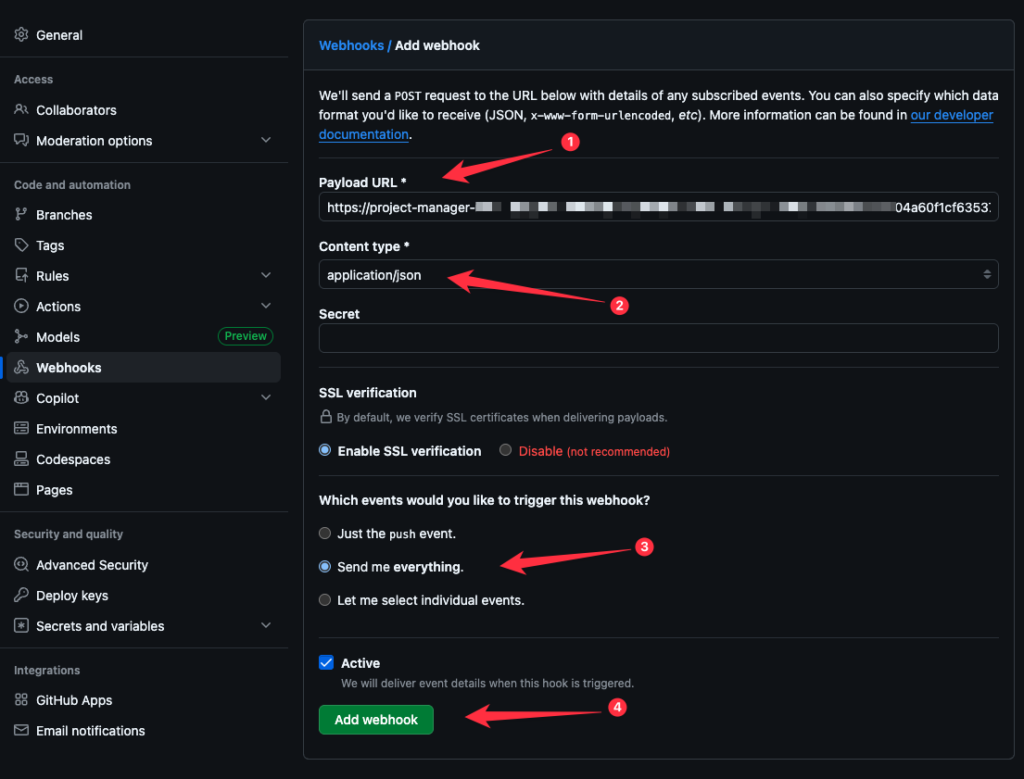
You are all set and have successfully integrated the WP Project Manager with Github.
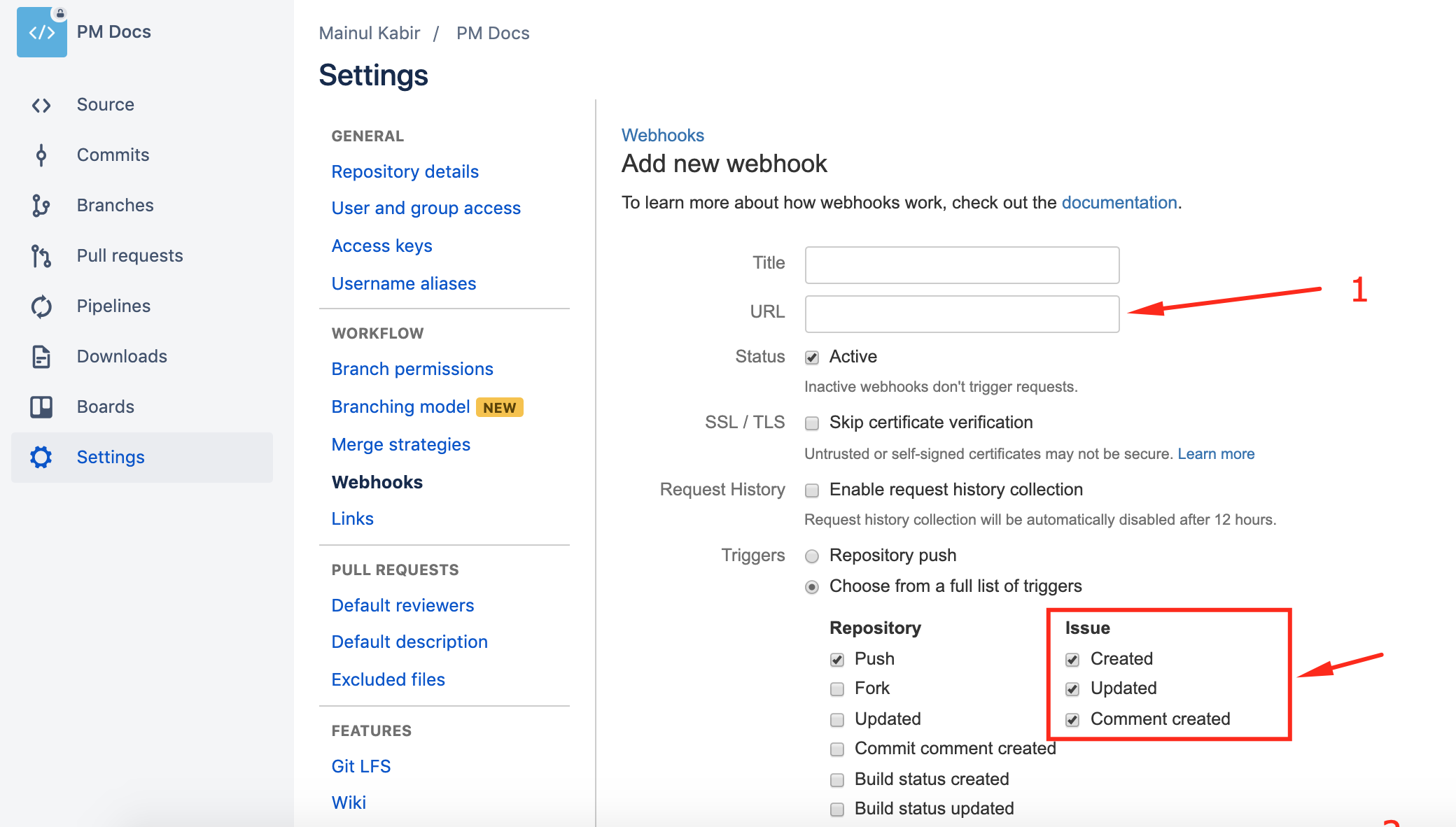
If you are using Bitbucket, the process is similar. Put a Title of your Webhook. Now, paste the URL that you have copied from your WP Project Managers Task Settings. In the Triggers section, check the three options under Issue. Finally, Save Settings.
How does the integration work?
Section titled “How does the integration work?”When someone creates an issue on your repository, it will be automatically added as a task in your WP Project Manager project.
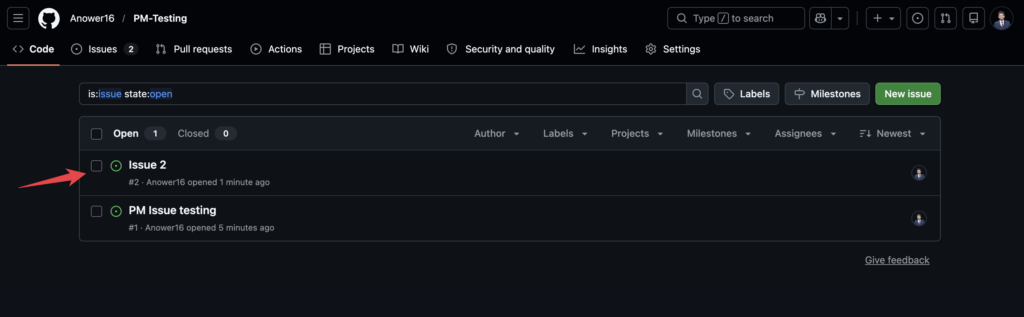
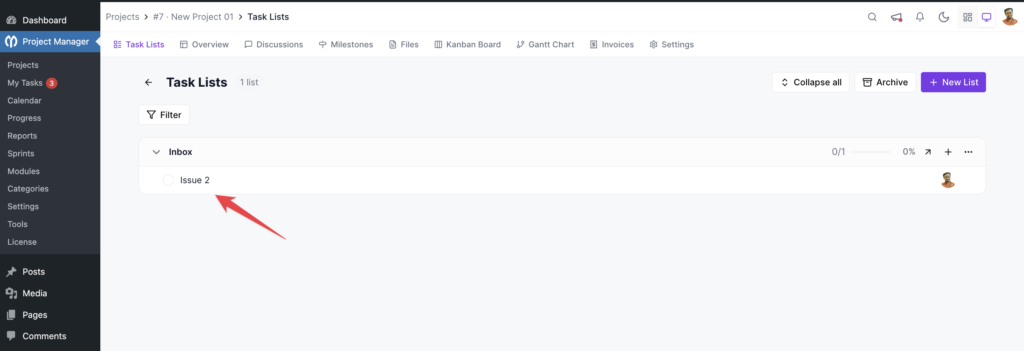
You can see the issues are listed as tasks in your Project. Basically, the tasks will be added to the Inbox list so that you can move them where appropriate.
If you open the task, you see when the task was created and by whom.
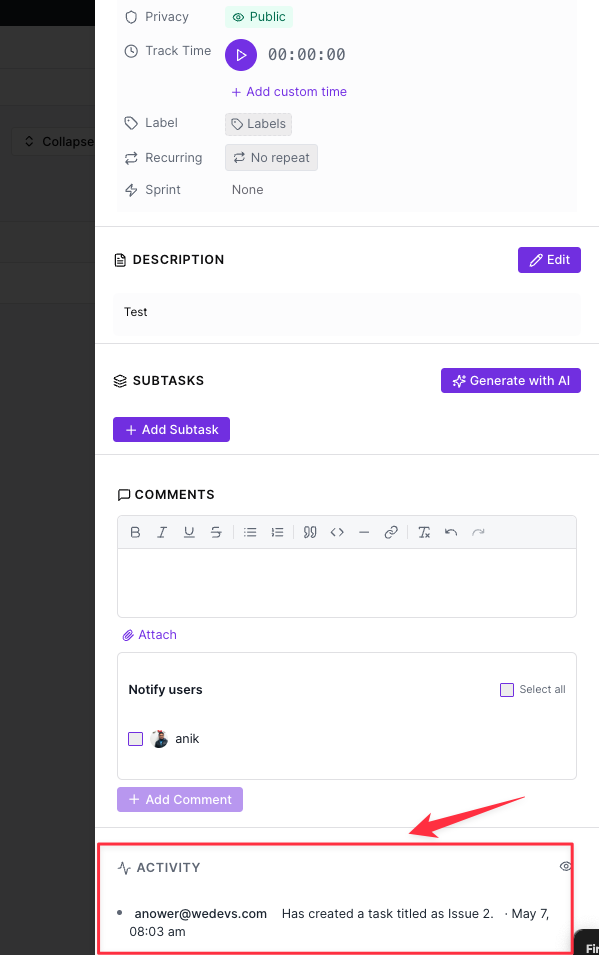
In the screenshot, the username is showing because it has been mapped using the WP Project Manager integration. If it wasn't mapped, the activity would show like the below screenshot.
How to Map Users
Section titled “How to Map Users”Mapping users is very easy. Navigate to the Github/ Bitbucket Integration section.
Your Project → Settings → Integrations
Scroll down and you will find some options.
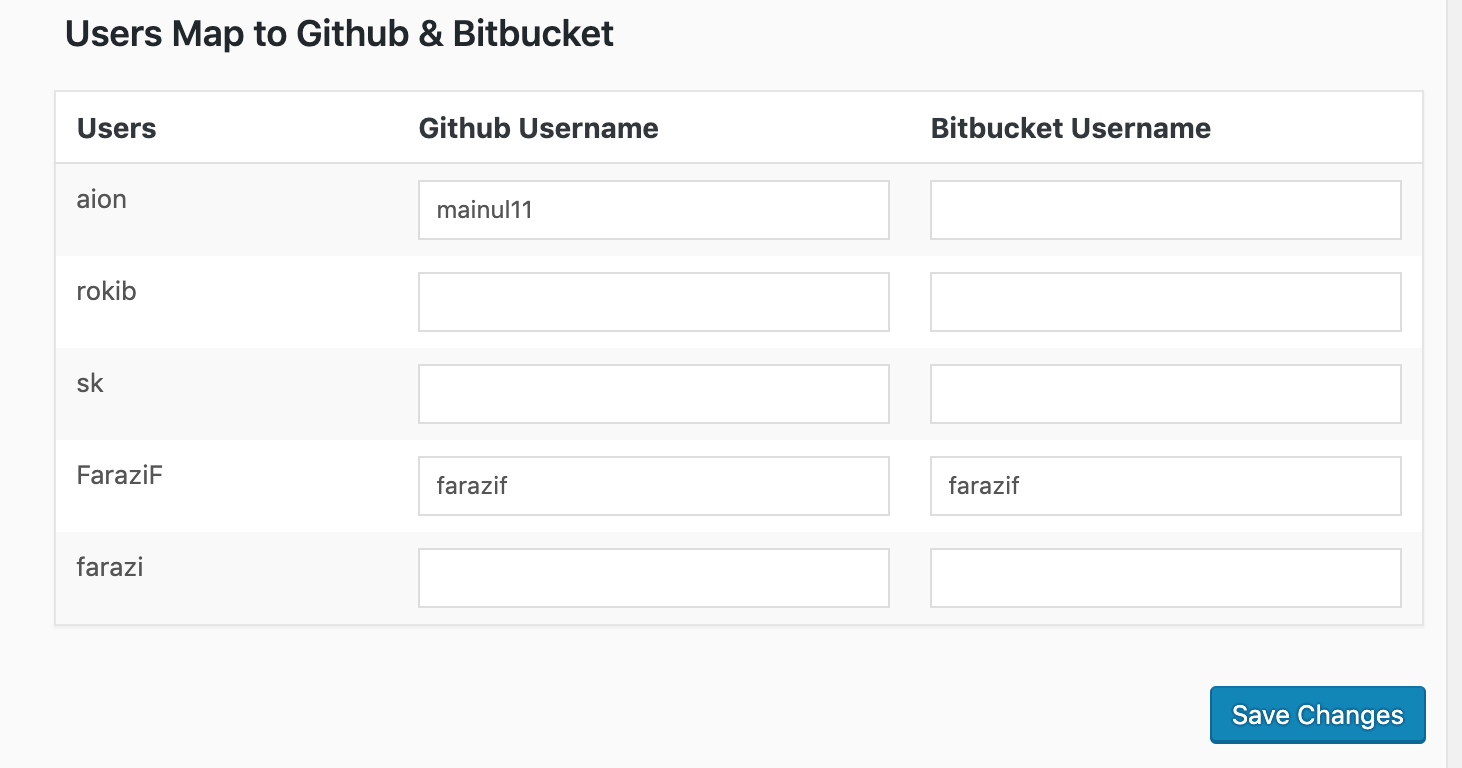
Now, put your and your team's GitHub Username or Bitbucket Username. Please note that the people who are assigned to the Project will be listed here as Users. You can put the GitHub Username or Bitbucket Username beside their names and Save Changes. That's it!
Congratulations, you have successfully integrated WP Project Manager Pro with Bitbucket/ GitHub.