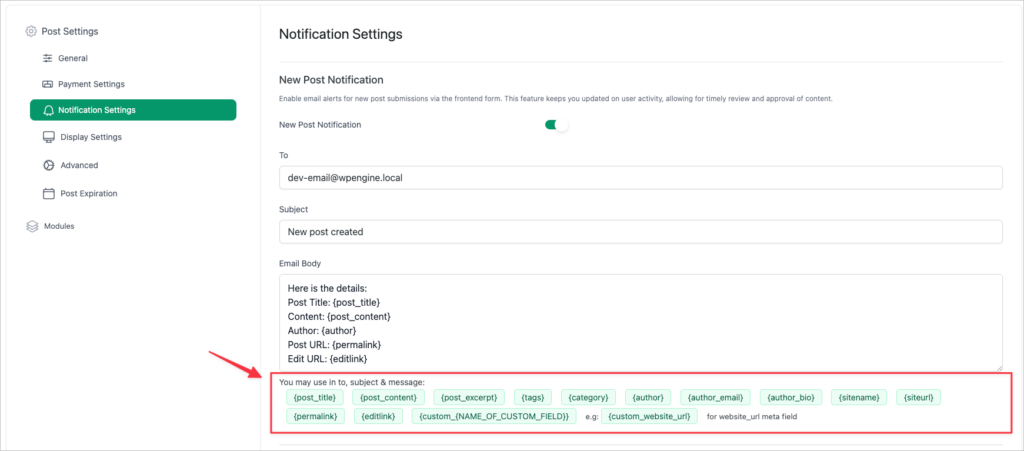

How to Set Up Submission Email Notification
You can easily set up submission email notifications in the WP User Frontend. First of all login to WP Admin Dashboard → WP User Frontend → Your Chosen Form → Settings > Notification Settings
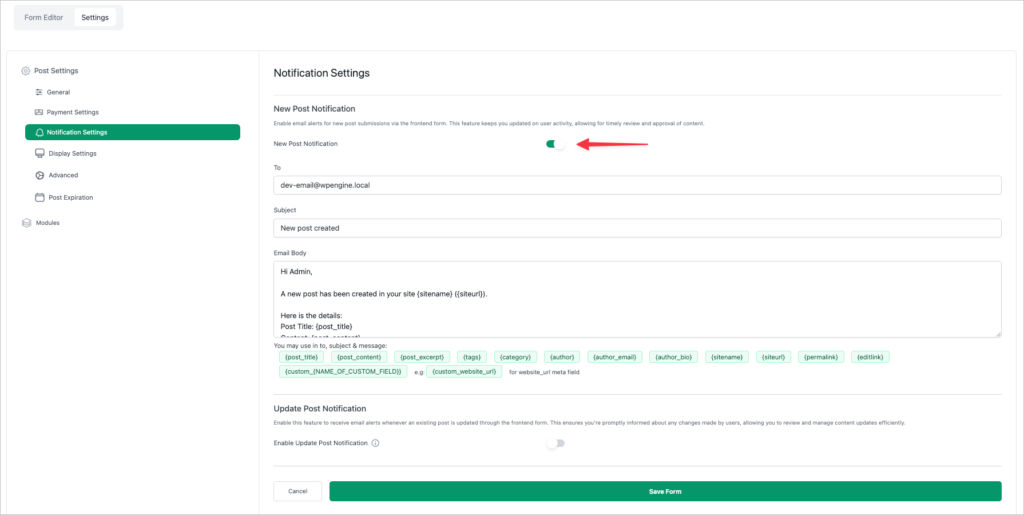
Here you will find three options. They are:
New Post Notifications:
Section titled “New Post Notifications:”When an author publishes a new post, you'll receive a message. It consists of the following items:
Notification checkbox:
Section titled “Notification checkbox:”Check the Notification box to get the notification when someone posts anything on your website.
Fill out the To field with the email to which you want to send a notification. By default, it is filled out with the admin’s email. But you can customize it according to your preferred recipient's email.
Subject:
Section titled “Subject:”Set the subject of the notification message so that the message recipient can easily understand what the notification message is all about.
Message:
Section titled “Message:”Type in detail about the notification in this field. This is the main body of New Post Notification.
Update Post Notifications:
Section titled “Update Post Notifications:”You will be notified when an author updates a new post. It is almost the same as New Post Notification. The difference is that it deals with the update of an existing post whereas New Post Notification deals with creating a new post.
Shortcodes:
Section titled “Shortcodes:”You can use shortcodes to specify the post’s title, content, category, tags, permalink, etc. You can find the shortcodes right under the Update Post Notification option: