

How to Configure Email Settings in WP Project Manager
WP Project Manager has a built-in email notification system for each and every feature, like assigning to a project or task, messaging, completing a task, and sending daily digests.
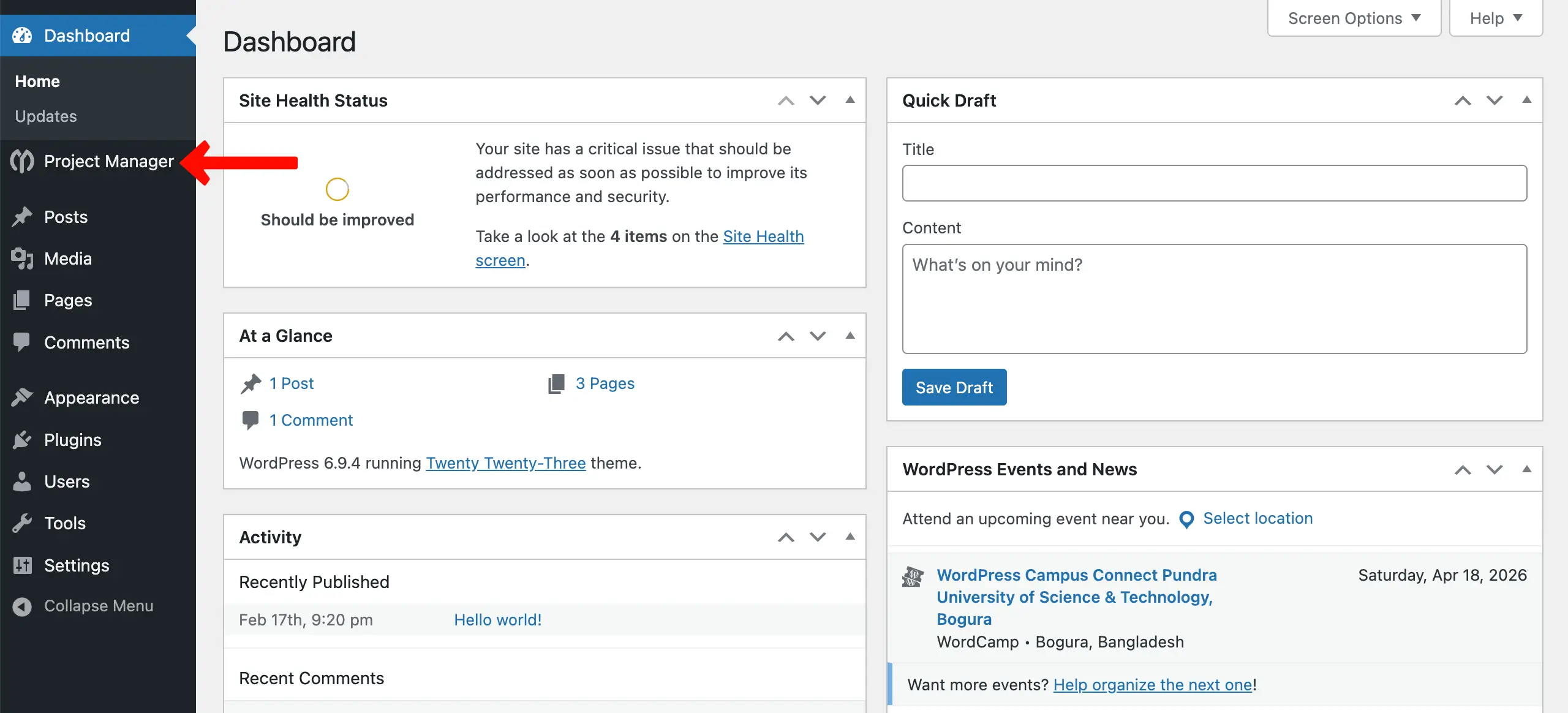
Go to WP Dashboard > Project Manager.
Now, navigate to Settings > Email on the right sidebar.
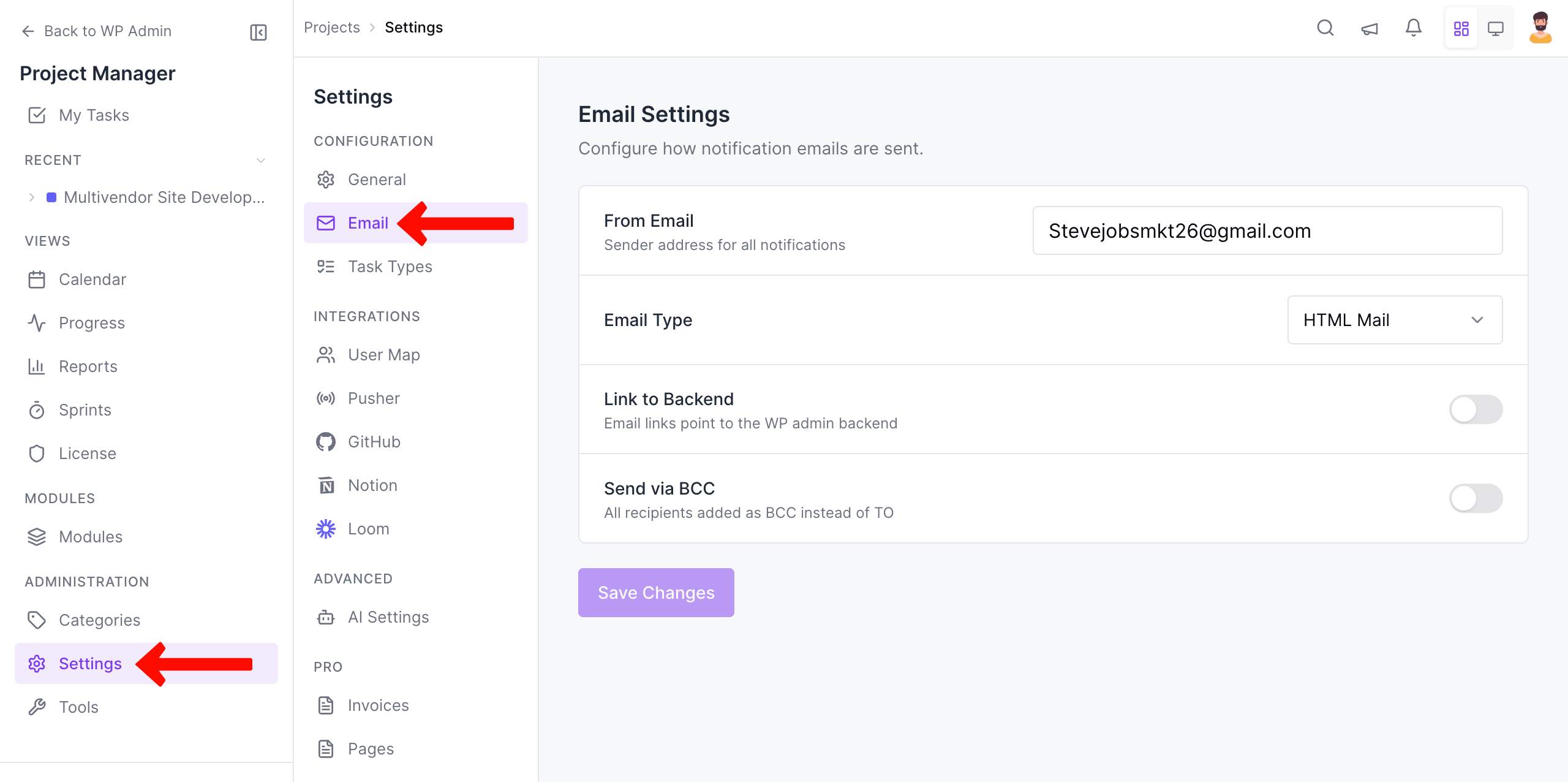
Description of Options
Section titled “Description of Options”From E-mail Address: You may know that each email contains information about where it was sent and where the replies should go. By default, the WP Project Manager picks up the admin email address. If you want to use a different email or a cool email address [email protected], write it here. A familiar organization email address will save your emails from the spam filters. So the best practice would be using info or contact email, which is your organization's most used email address.
Links in the Email: You may already know WP Project Manager has a built-in frontend feature. So if you have locked the backend access and want the users to manage everything from the frontend, then you should select Link to Front-end. By default, Link to Backend is selected, and all the links in the email about tasks, messages, and files are placed on the backend.
E-mail Type: If you do not like the notification emails with colors and graphics and prefer text-only emails, then you can select Plain text. Else HTML emails will be fine.
Send Email via BCC: Normally, if there are multiple people attached to a thread, then the emails are sent using the CC feature. If you do not want to reveal other users email address, then you can enable BCC.
Triggers
Section titled “Triggers”Emails will be sent to the user whenever any of these events are triggered:
- Added to a project.
- New message.
- Assigned to a task.
- New comment on a task
- Task marked as complete.
- Daily Digest